Getting started · 09

Showing your record to a doctor, clinic or coach

Sometimes the person who should see your record is standing in front of you, or at the end of a hospital bed, and you cannot email them anything. Share now is made for that. You tell them three things: an address, your date of birth and a code. They type them into any browser and see the part of your record you chose.

6 min read · EN ES DE FR PT IT NL PL ZH
CC BY-NC-SA 4.0

Three addresses

rpb.doctor, rpb.clinic and rpb.coach. Each opens the same simple form, and each starts from a different selection: a doctor sees what you take first, a clinic sees the fullest picture, a coach sees your plan and how it is going. You can change the selection every time.


Making a share

Open Share now from the menu at the top right.
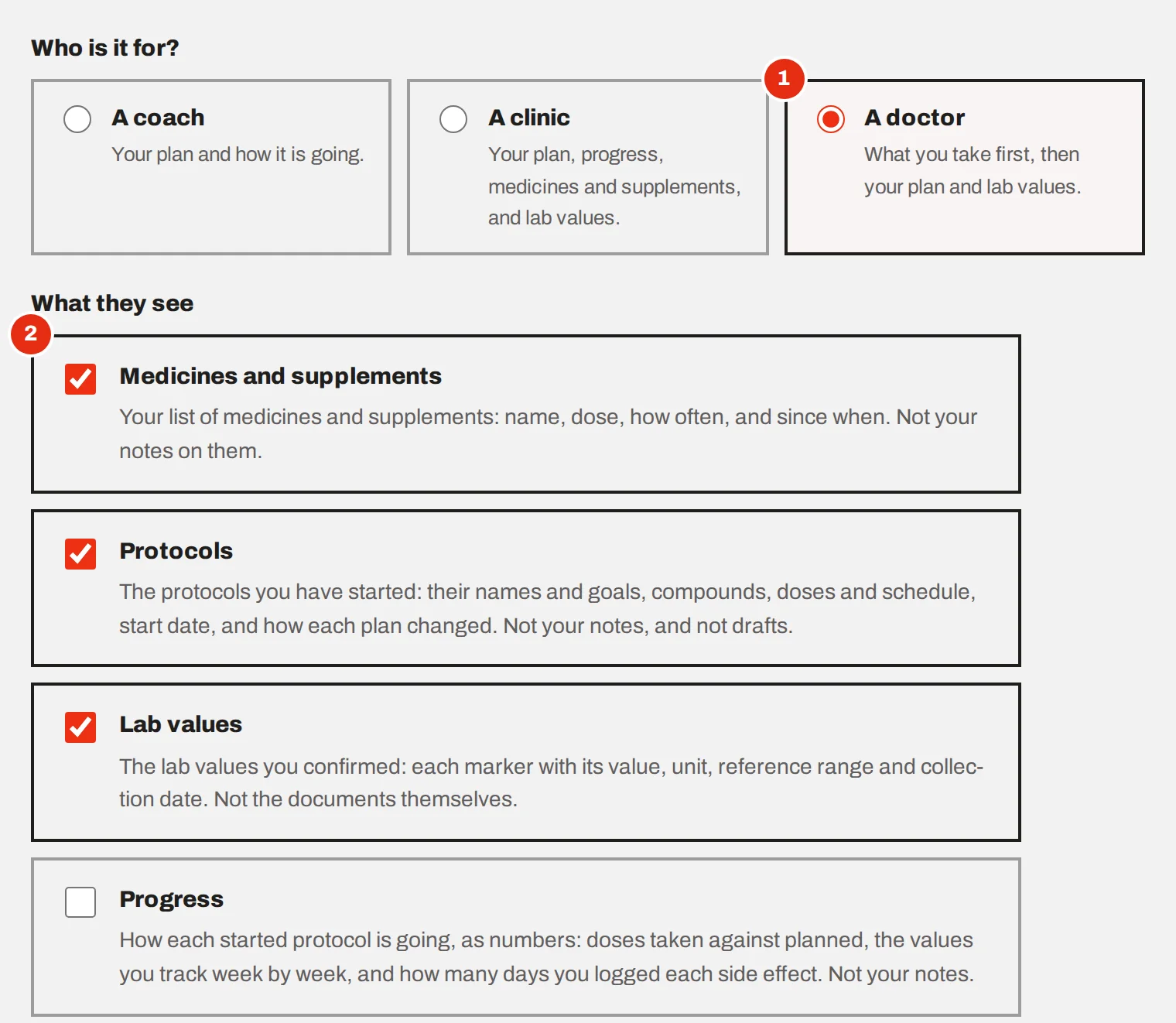
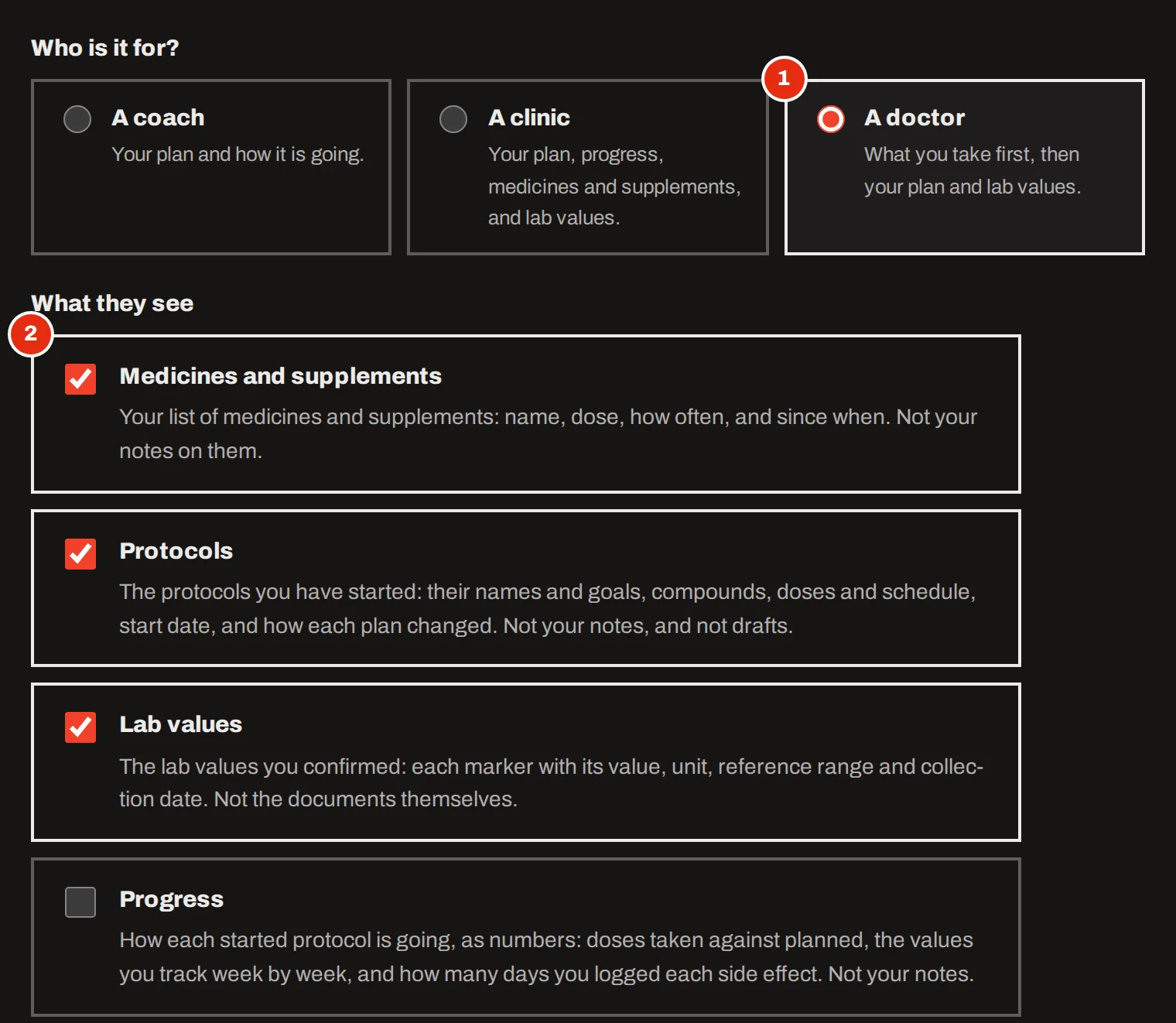
The top of the Share now form: a choice between coach, clinic and doctor, and four tick boxes for medicines and supplements, protocols, lab values and progress.The top of the Share now form: a choice between coach, clinic and doctor, and four tick boxes for medicines and supplements, protocols, lab values and progress.
Each box says what is shown and what is left out.
  1. Choose who it is for

    This decides the address you will say and which boxes start ticked.

  2. Tick what they may see

    Medicines and supplements, protocols you have started, lab values you confirmed, and progress as numbers. Your notes are never included, and neither are drafts or the lab documents themselves.
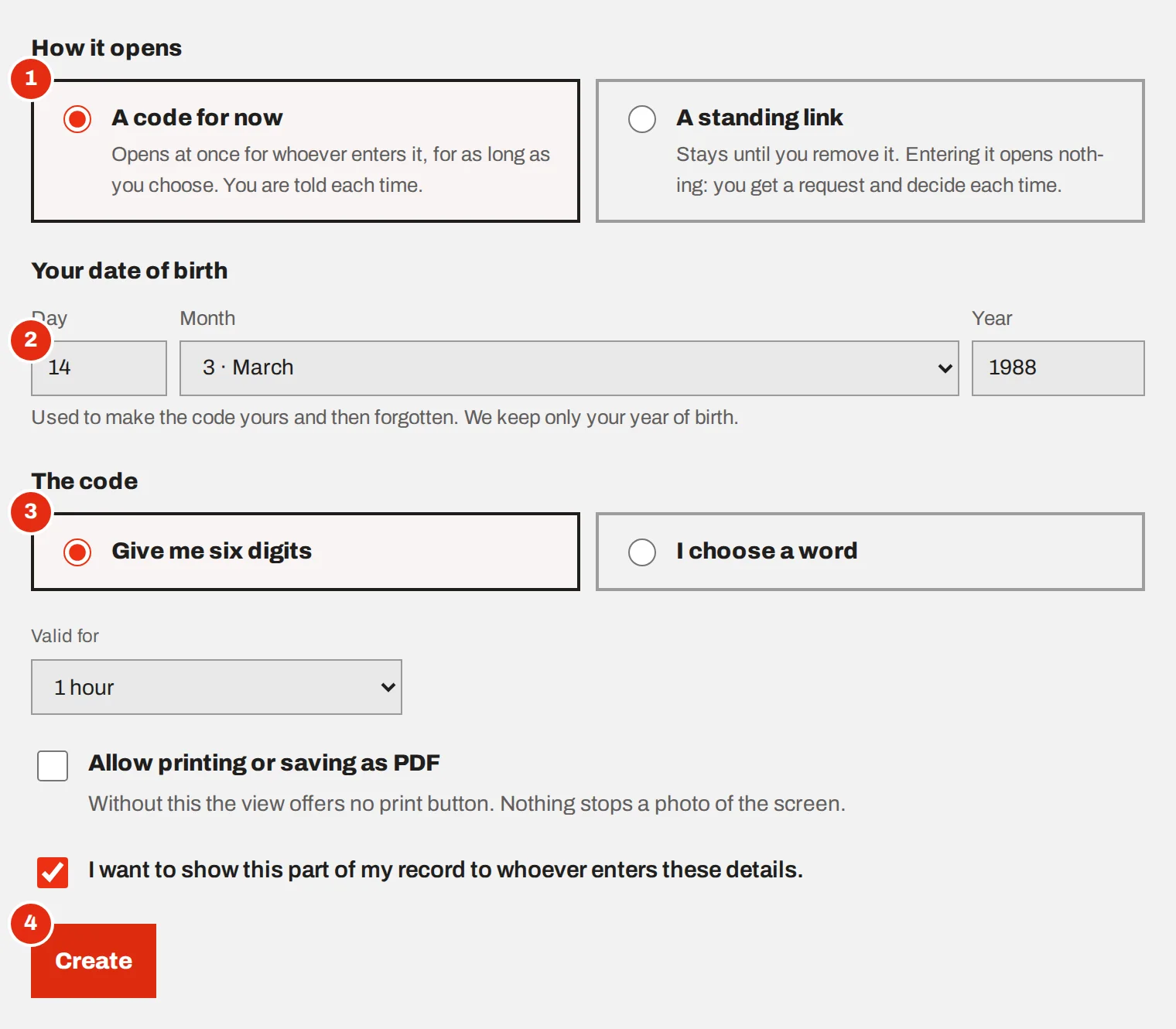
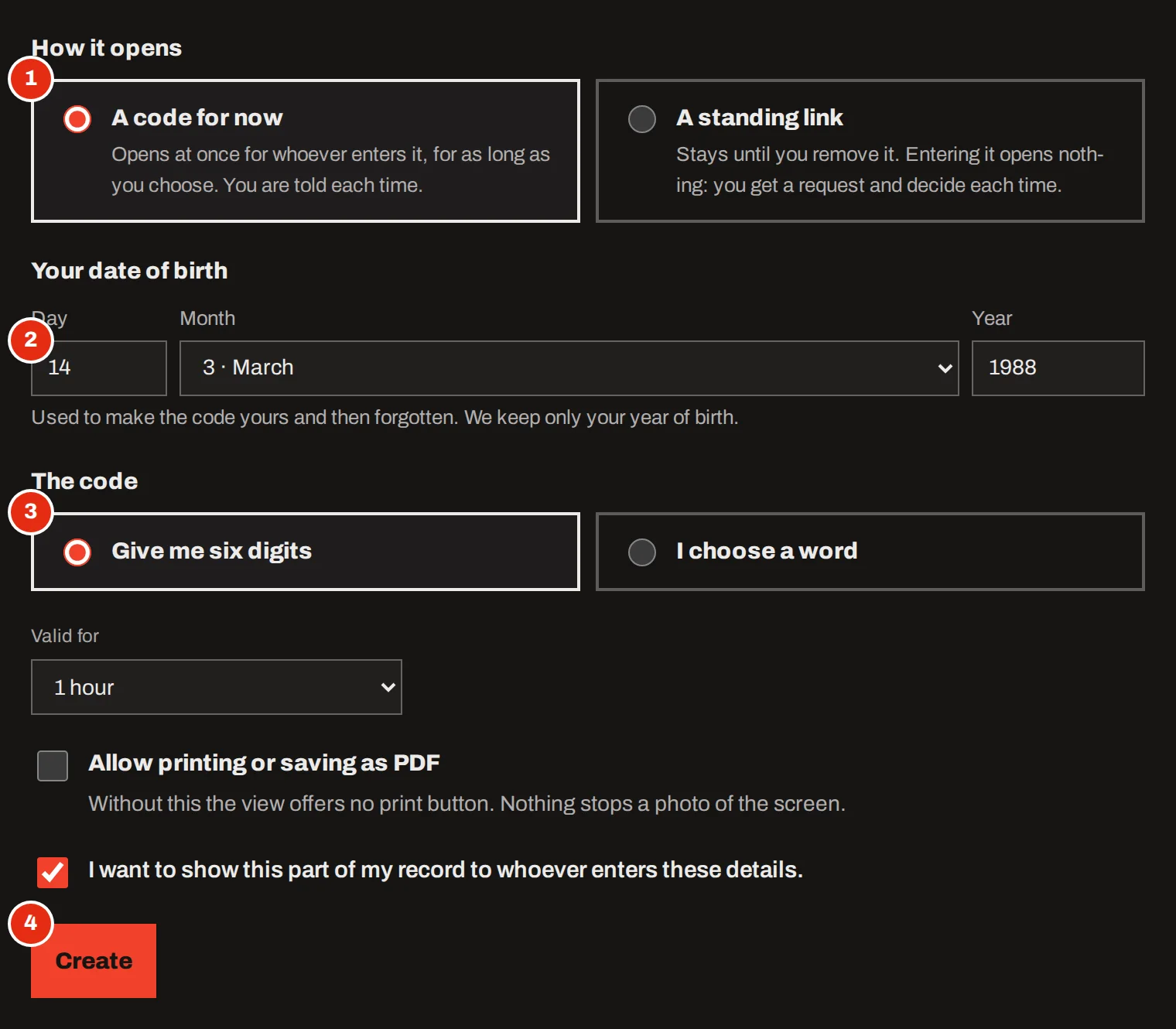
The lower part of the form: a code for now or a standing link, the date of birth, a choice between six digits and a word of your own, how long the code is valid, and the Create button.The lower part of the form: a code for now or a standing link, the date of birth, a choice between six digits and a word of your own, how long the code is valid, and the Create button.
A code for now is the usual choice.
  1. Choose how it opens

    A code for now opens at once for whoever enters it, for as long as you choose: 15 minutes, 1 hour, 4 hours or 24 hours. A standing link is explained below.

  2. Enter your date of birth

    It makes the code yours. We use it for this and then forget it; your account keeps only the year.

  3. Pick the code

    Six digits that we make, or a word you choose, such as the doctor’s own name, which they will still remember an hour later.

  4. Confirm and create

    Tick the box that says you want to show this part of your record, and press Create.
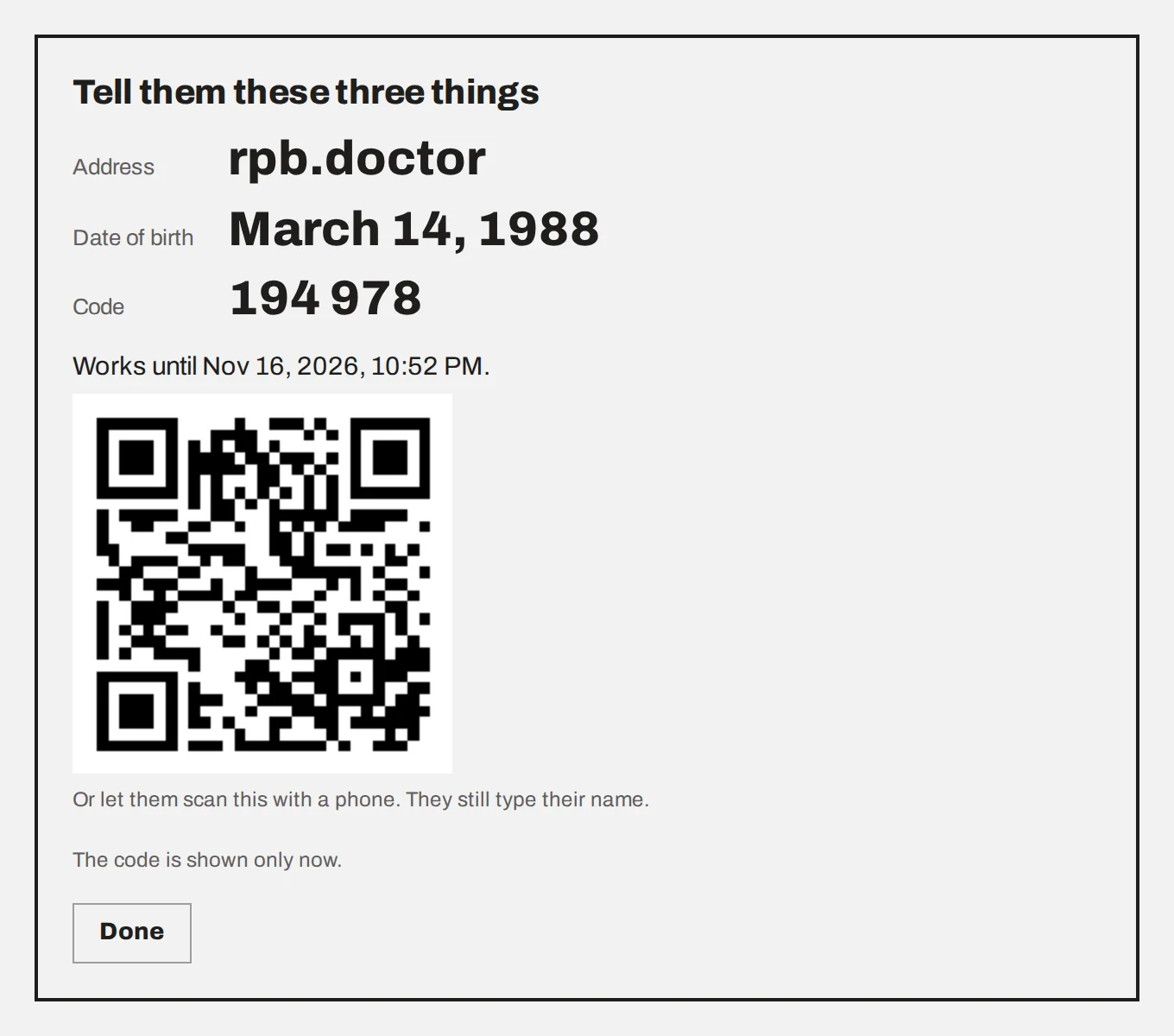
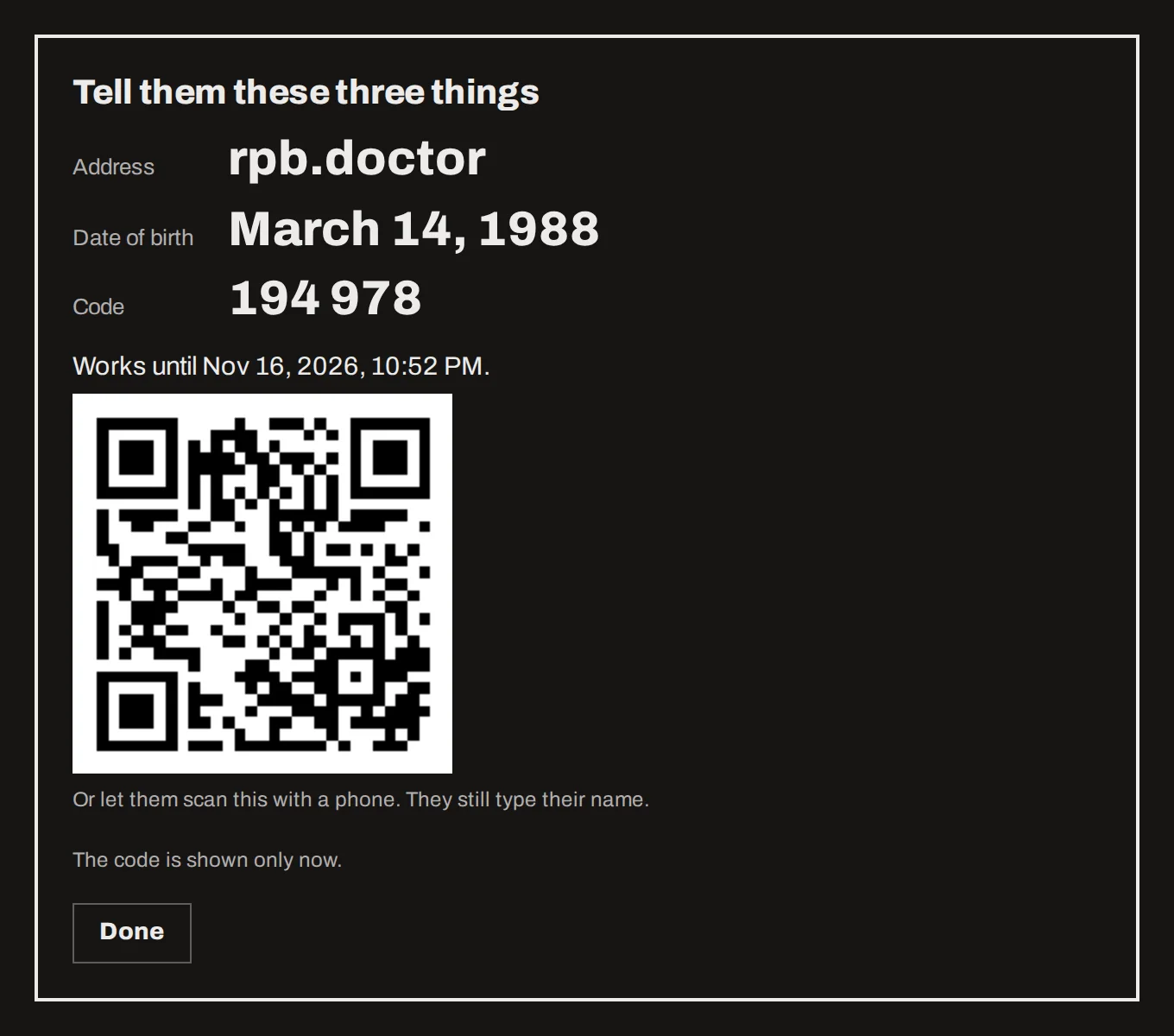
The box “Tell them these three things” with the address rpb.doctor, a date of birth and a six-digit code, and a QR code beneath.The box “Tell them these three things” with the address rpb.doctor, a date of birth and a six-digit code, and a QR code beneath.
Read these out, or let them scan the QR code.

The code is shown only now. Say the three things, or let the other person scan the QR code with a phone.


What the other person does
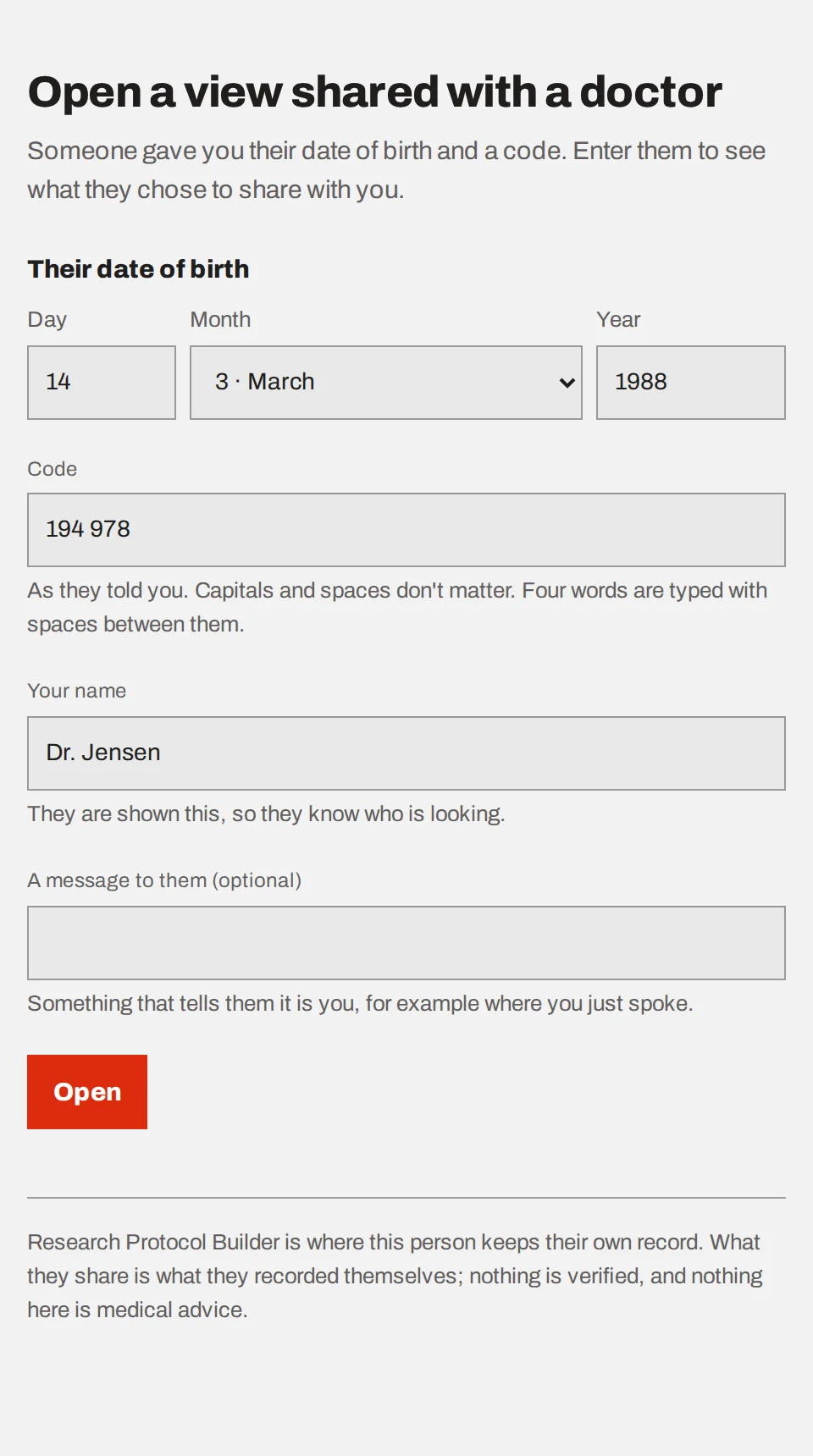
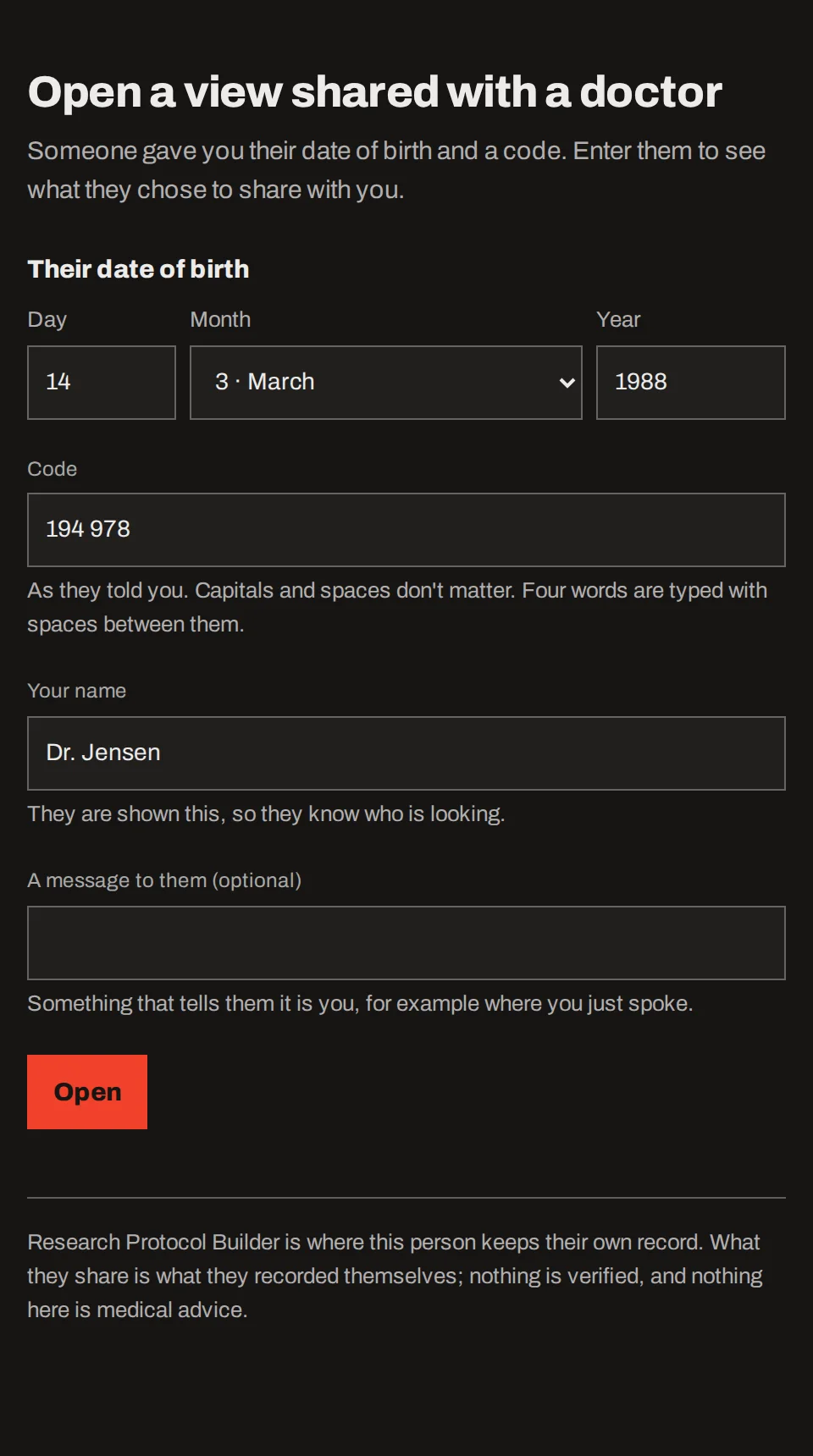
The page at rpb.doctor: fields for the date of birth, the code, the viewer’s own name and an optional message, and an Open button.The page at rpb.doctor: fields for the date of birth, the code, the viewer’s own name and an optional message, and an Open button.
What they see at the address.

They enter your date of birth and the code, and type their own name. You are shown that name, so you know who looked. We cannot verify it.
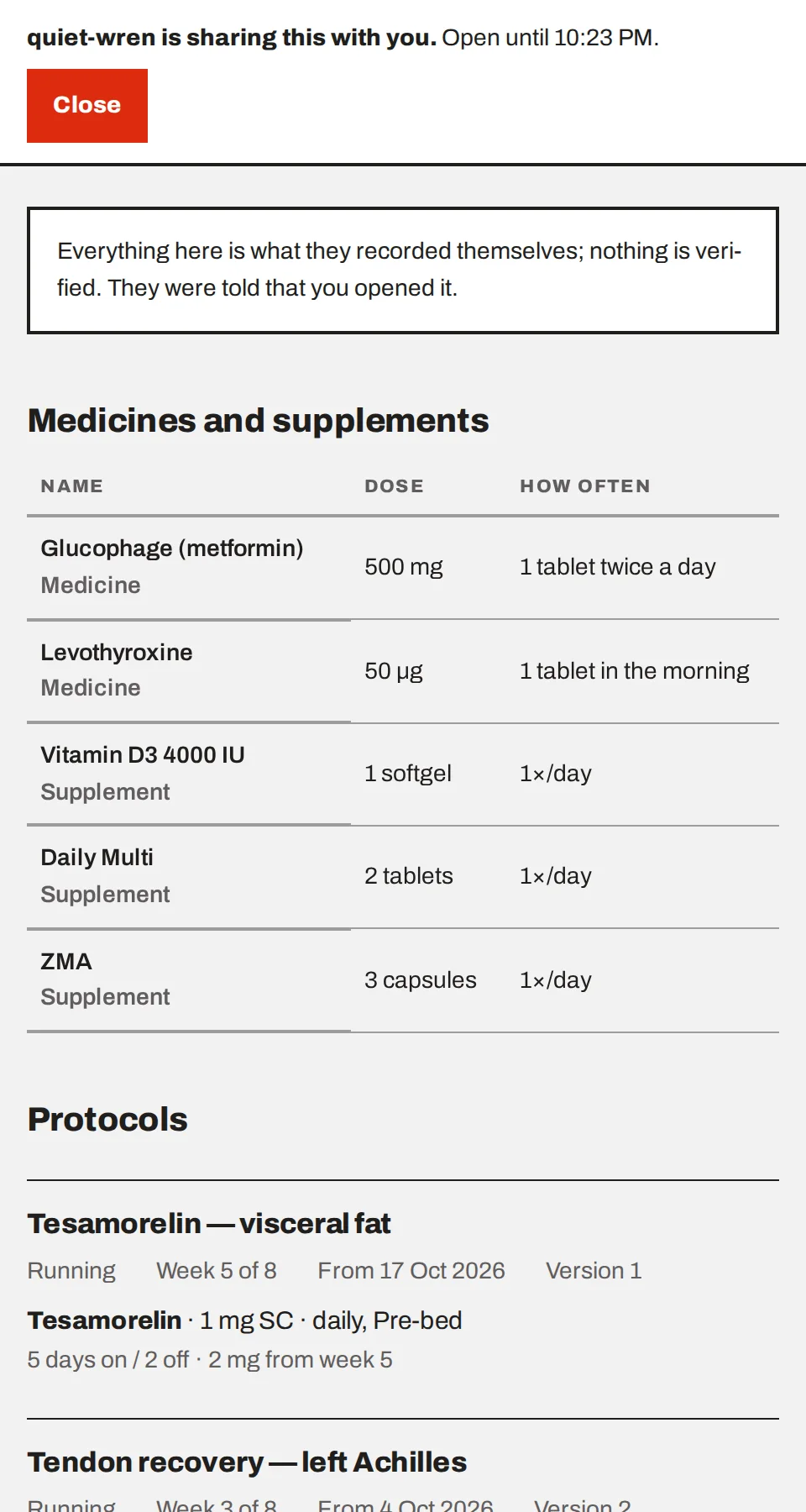
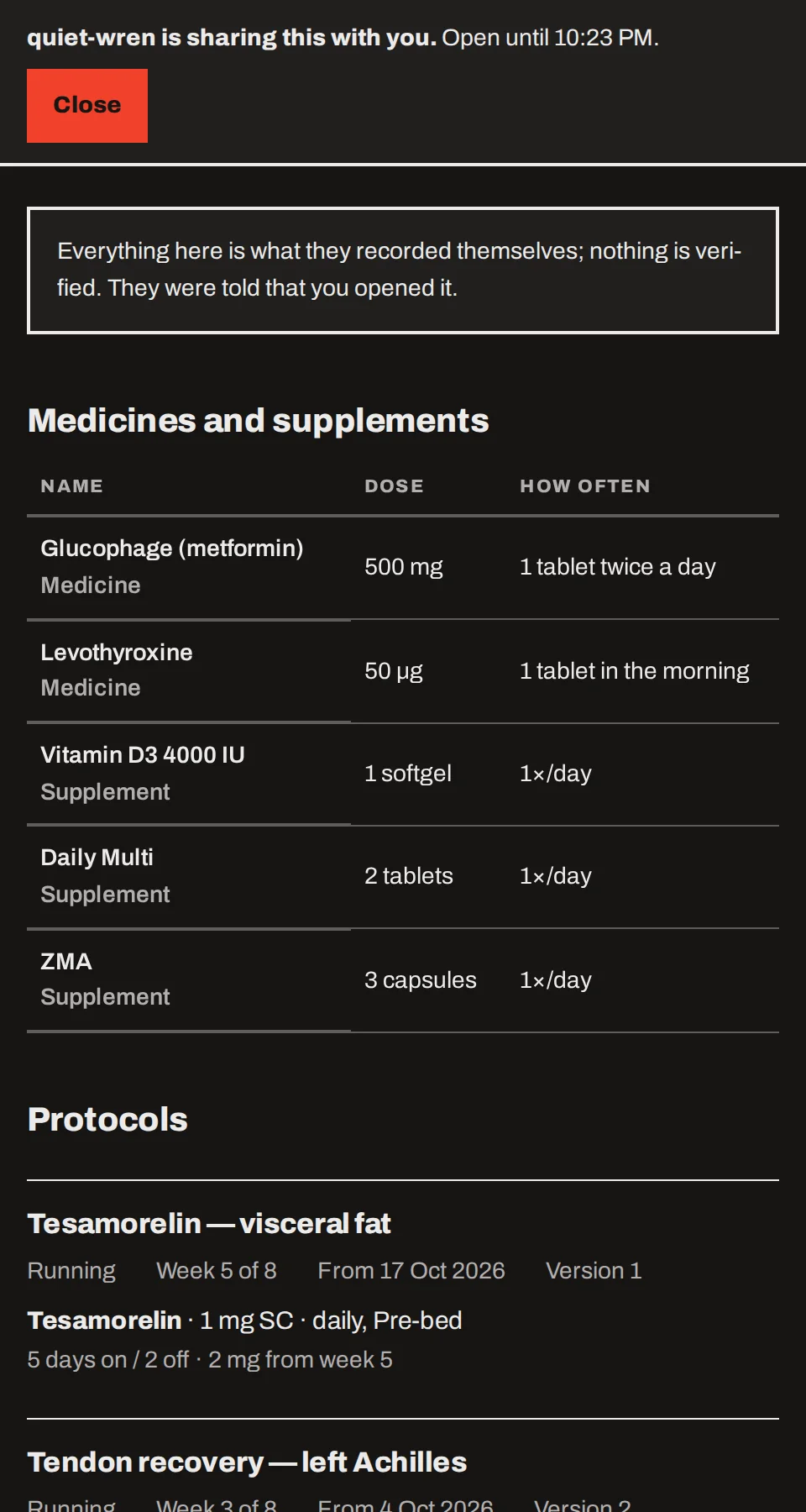
The opened view: a line saying who is sharing and until when, a Close button, a notice that everything is self-recorded, and a table of medicines and supplements.The opened view: a line saying who is sharing and until when, a Close button, a notice that everything is self-recorded, and a table of medicines and supplements.
The view they get.

The view stays open for 30 minutes at most, and never beyond the life of the code. It says plainly that everything in it is what you recorded yourself and that nothing is verified. There is a print button only if you allowed printing when you made the share.


A standing link

A standing link is for someone you see regularly. You choose a passphrase once, and it stays until you remove it. Entering it opens nothing. Instead you get a request, in Telegram or by email, saying who is asking and where the request comes from, and you decide each time.
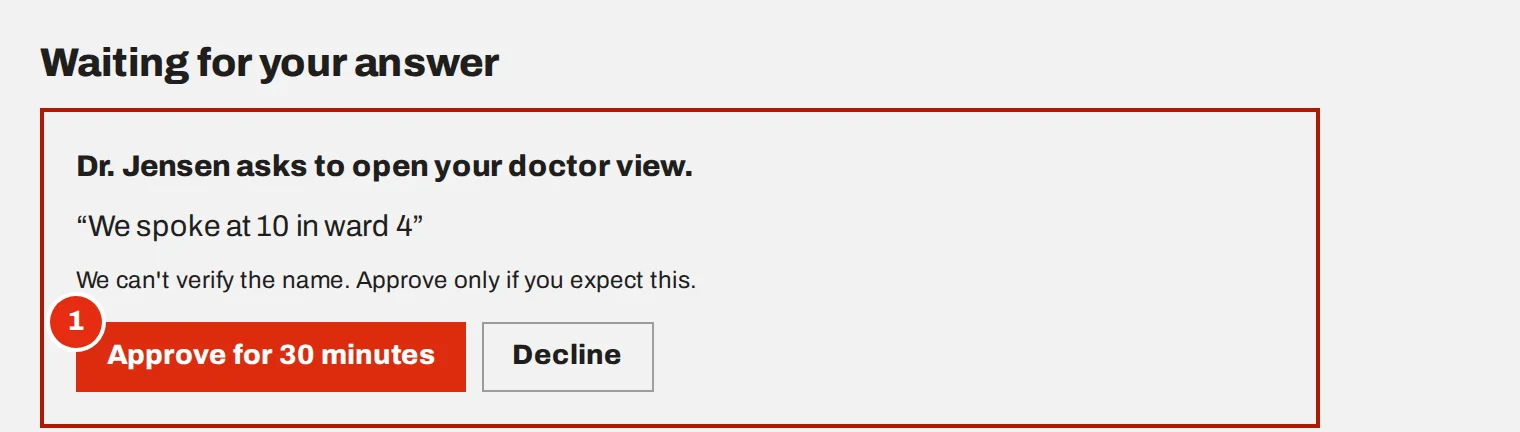
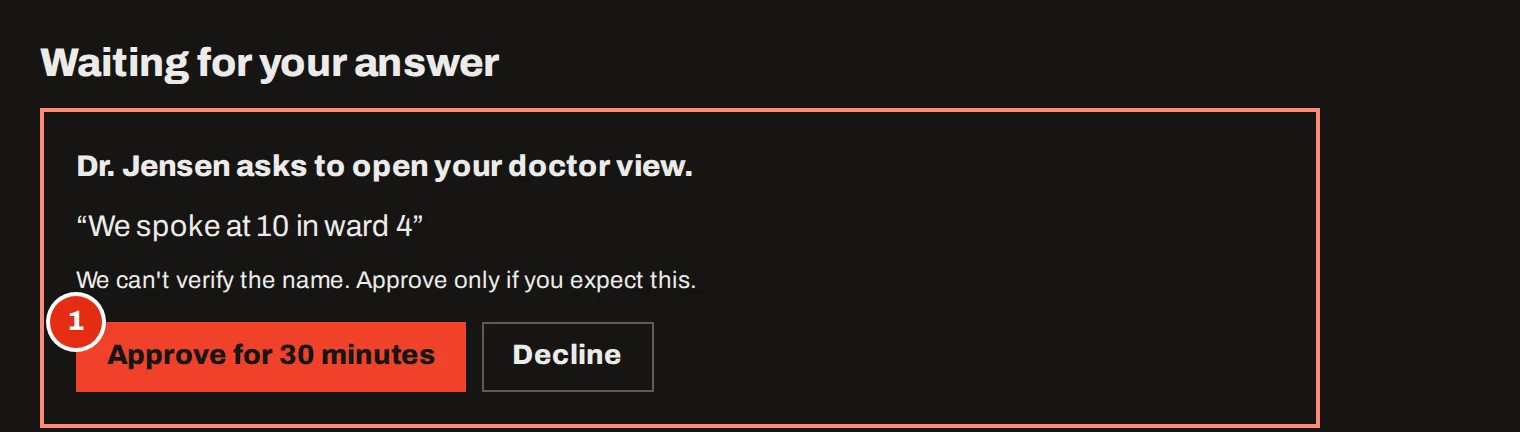
A request on the Share now page: “Dr. Jensen asks to open your doctor view”, the message they wrote, and the buttons “Approve for 30 minutes” and “Decline”.A request on the Share now page: “Dr. Jensen asks to open your doctor view”, the message they wrote, and the buttons “Approve for 30 minutes” and “Decline”.
Approve only what you expect.

The other person’s page waits up to 10 minutes for your answer. After three declined requests a standing link stops asking, and you make a new one with a different passphrase.


Keeping track
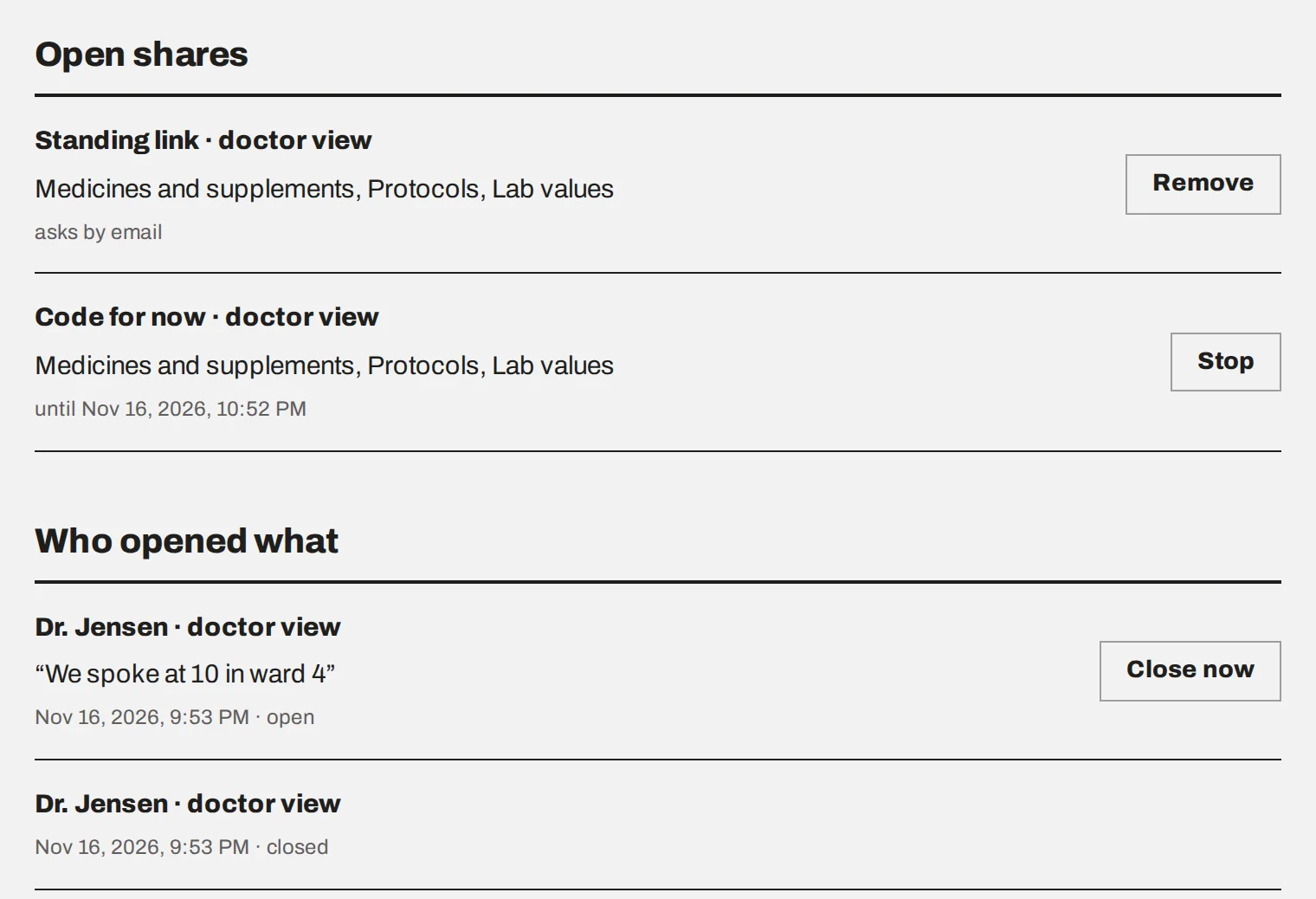
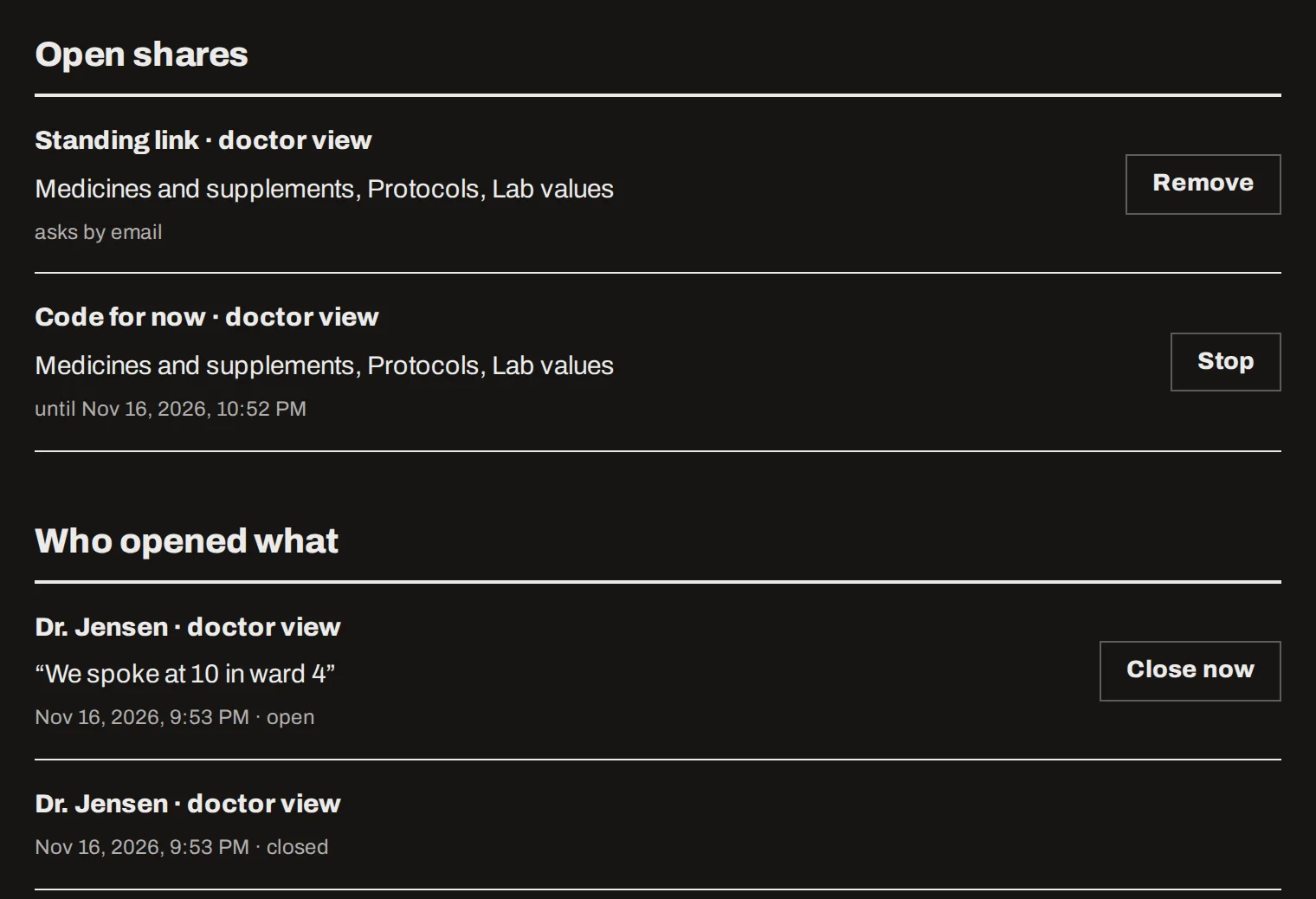
The lists “Open shares” and “Who opened what” on the Share now page, with buttons to stop a share, remove a standing link and close a view that is open now.The lists “Open shares” and “Who opened what” on the Share now page, with buttons to stop a share, remove a standing link and close a view that is open now.
Every opening is listed.

You are told each time something is opened. Share now lists what is shared at the moment and who opened what, when and from where. Stop ends a code early, Remove deletes a standing link, and Close now shuts a view someone has open.


With a private vault

We cannot read a vault, so your browser prepares the view and locks it with four words, in your own language, that only you and the person you tell will know. We store it locked and cannot open it. With a vault there are codes for now only: no word of your own and no standing link.


Common mistakes

A word about yourself as the code. Anyone who knows your date of birth and guesses the word gets in. Use something the other person will remember, not something others know about you.
Sharing more than the conversation needs. A coach rarely needs your lab values. Untick what does not belong.
Approving a request you did not expect. The name is typed by whoever is asking. If you are not with them or expecting them, decline.
Thinking no print button means no copy. Nothing stops a photo of the screen. Share only what you would hand over on paper.