- The Research Assistant set up, with Plus or your own AI key. Reading a photo needs it; adding by name does not
- The packs or bottles in good light, with the printed side facing you
- For supplements, the side with the Supplement Facts panel
Medicines
Go to Account → Medications. The scanner is the first thing on the page.
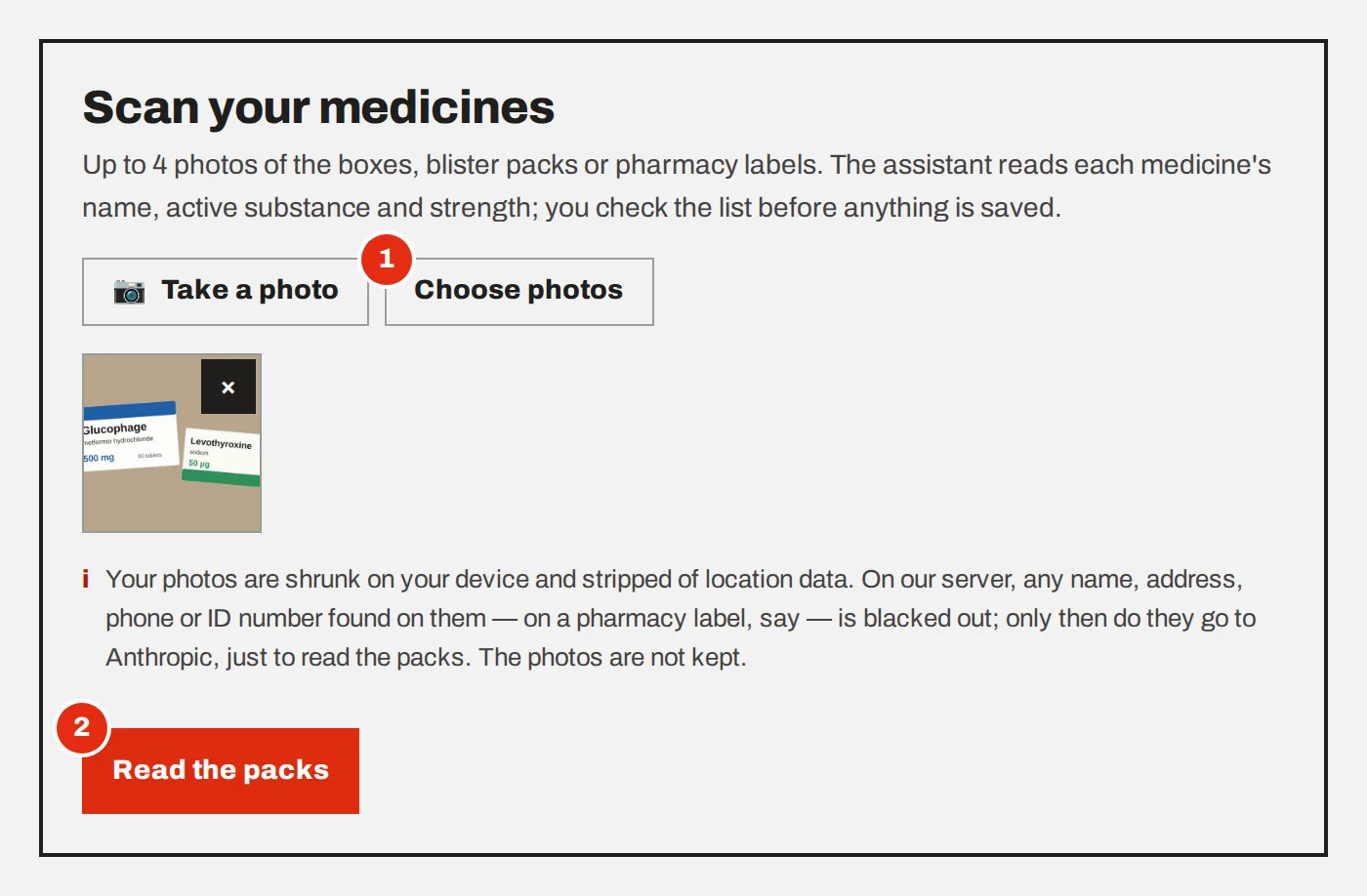
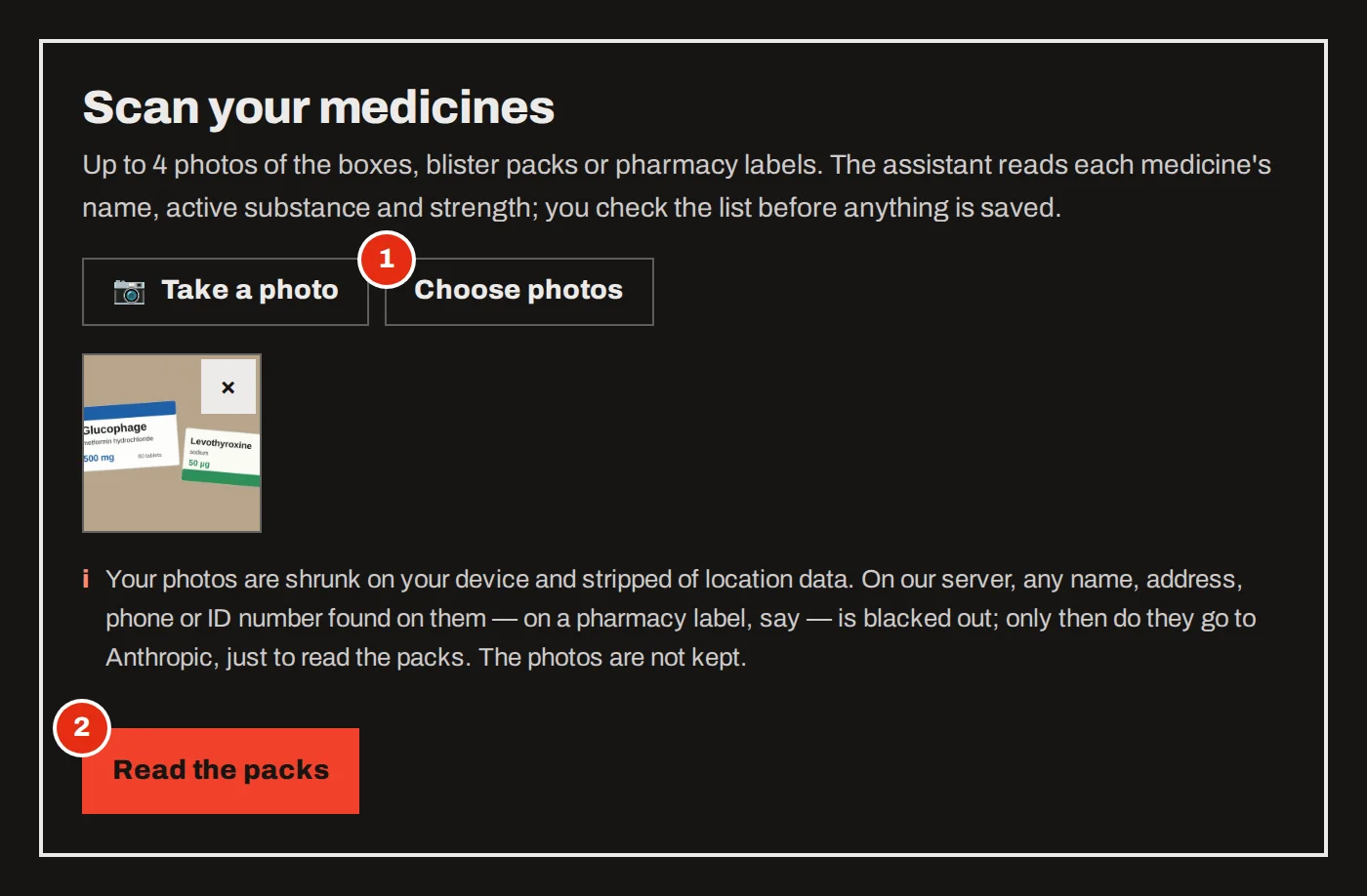
Take or choose up to 4 photos
On a phone, Take a photo opens the camera. Choose photos picks pictures you already have. Boxes, blister packs and pharmacy labels all work.
Press “Read the packs”
Reading takes 10–40 seconds. For each medicine the assistant looks for the name, the active substance and the strength.
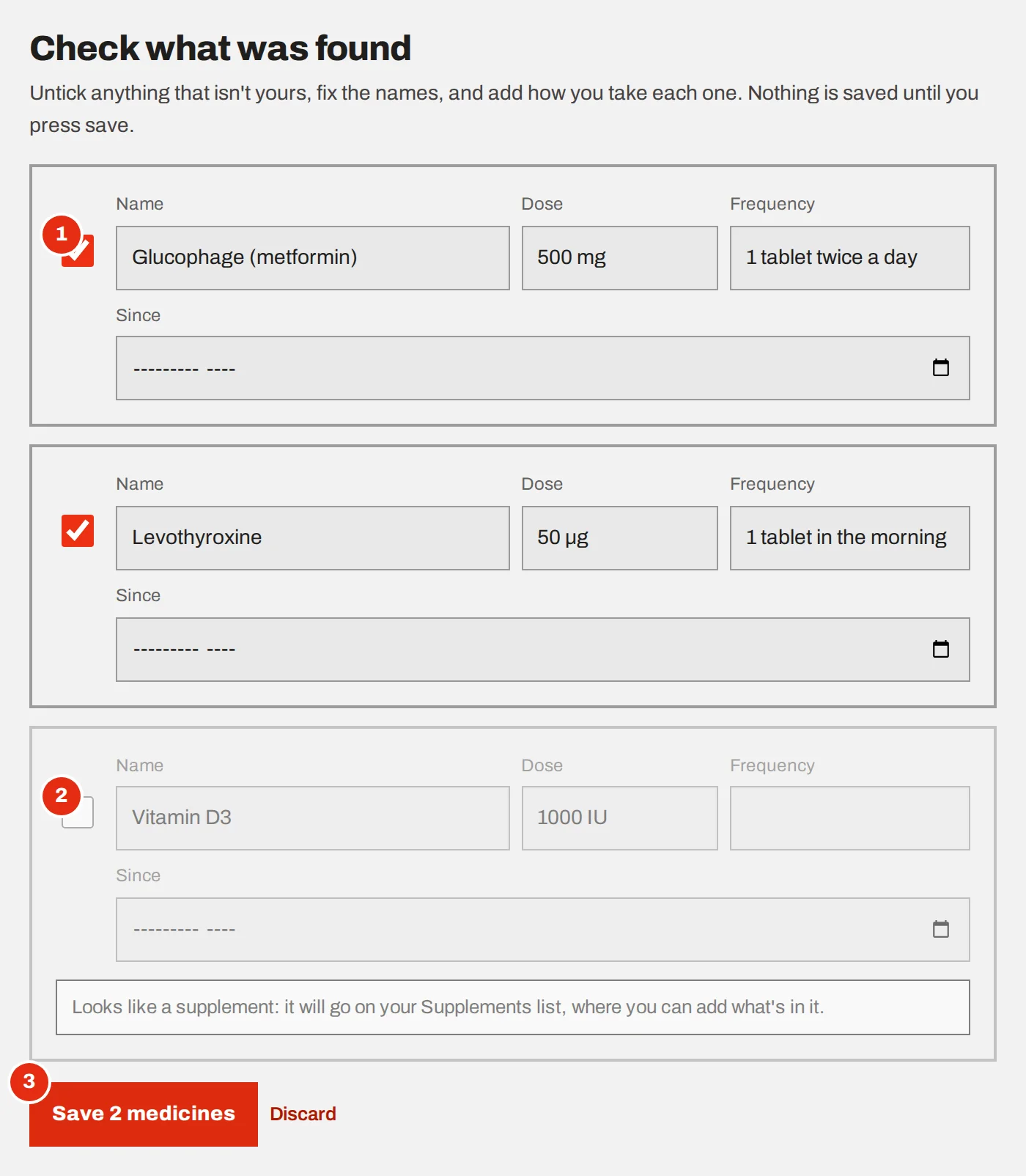
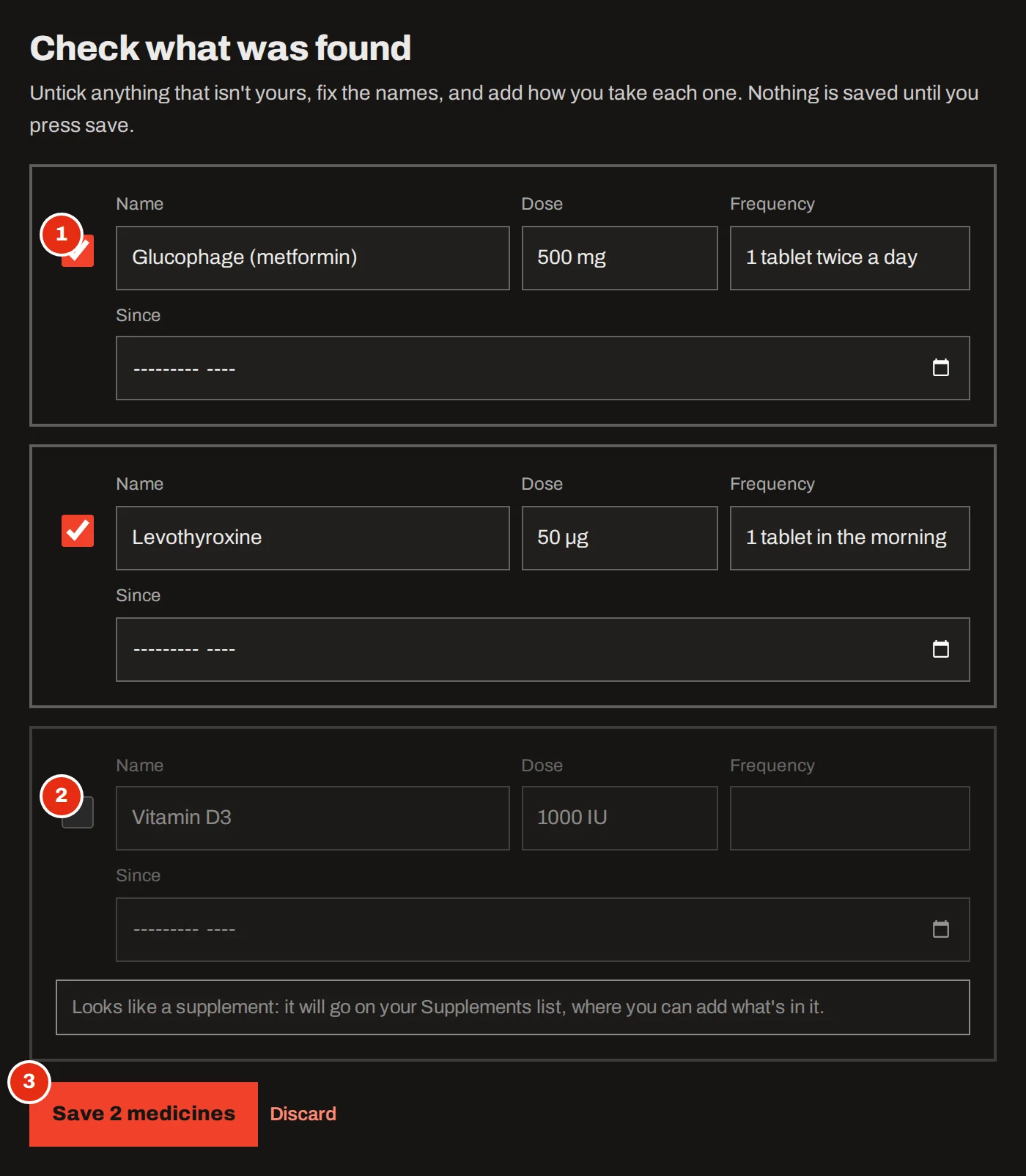
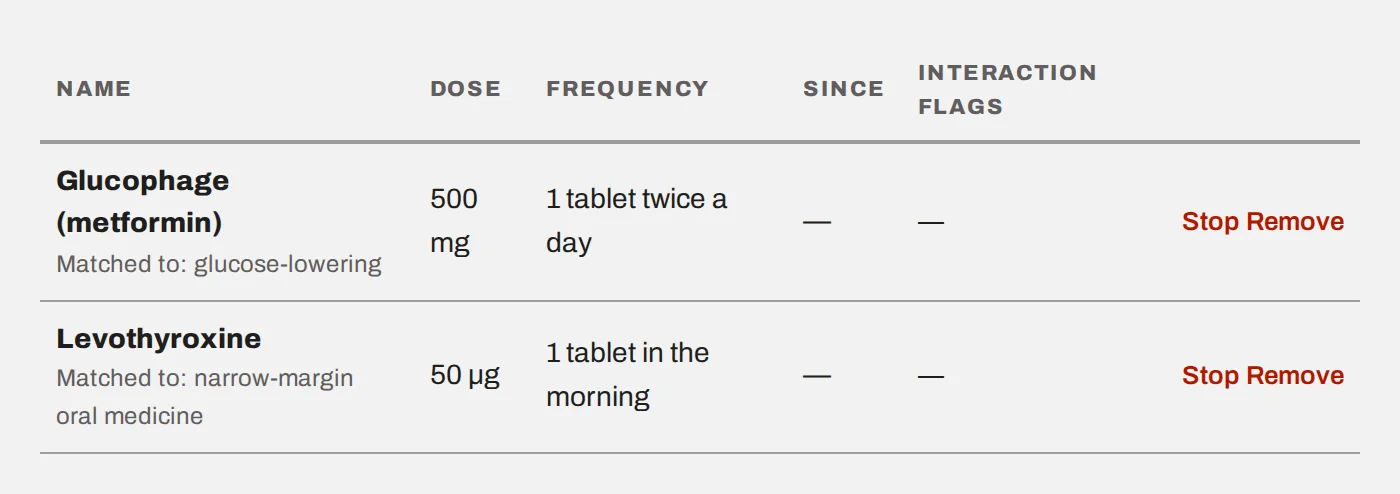
Check each line
Fix a name or a strength that was read wrongly, and add how often you take it. Directions are filled in only where the pack printed them.
Untick what is not yours
A supplement in the photo is pointed out; it belongs on the Supplements list, which has its own scanner. Something already on your list comes unticked, so a second scan does not add it twice.
Save
The medicines join your list. From then on the builder and your protocol pages flag documented interactions with the compounds in your plan, as information to discuss, not as a verdict.
Supplements and vitamins
Account → Supplements & vitamins works the same way, with one difference: it also reads what is in each product, so the page can add up what you take in a day.
Say how you take each one
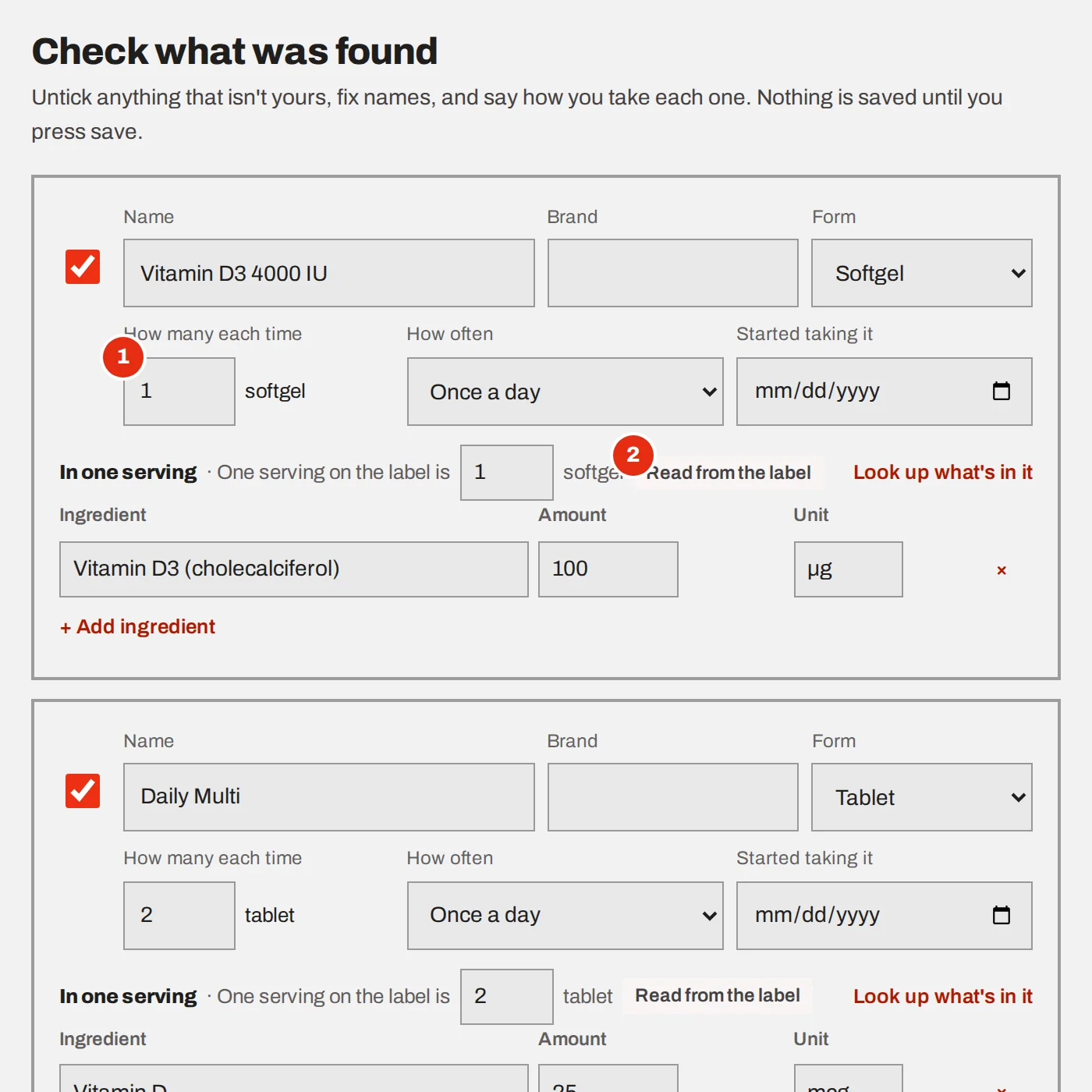
How many each time and how often. The totals are worked out from this, so it matters more than the product name.
Look at where the amounts came from
“Read from the label” means the Supplement Facts panel was visible. “Usual formula” means only the front of the bottle showed, so the amounts are the product’s usual ones: check them against your bottle.
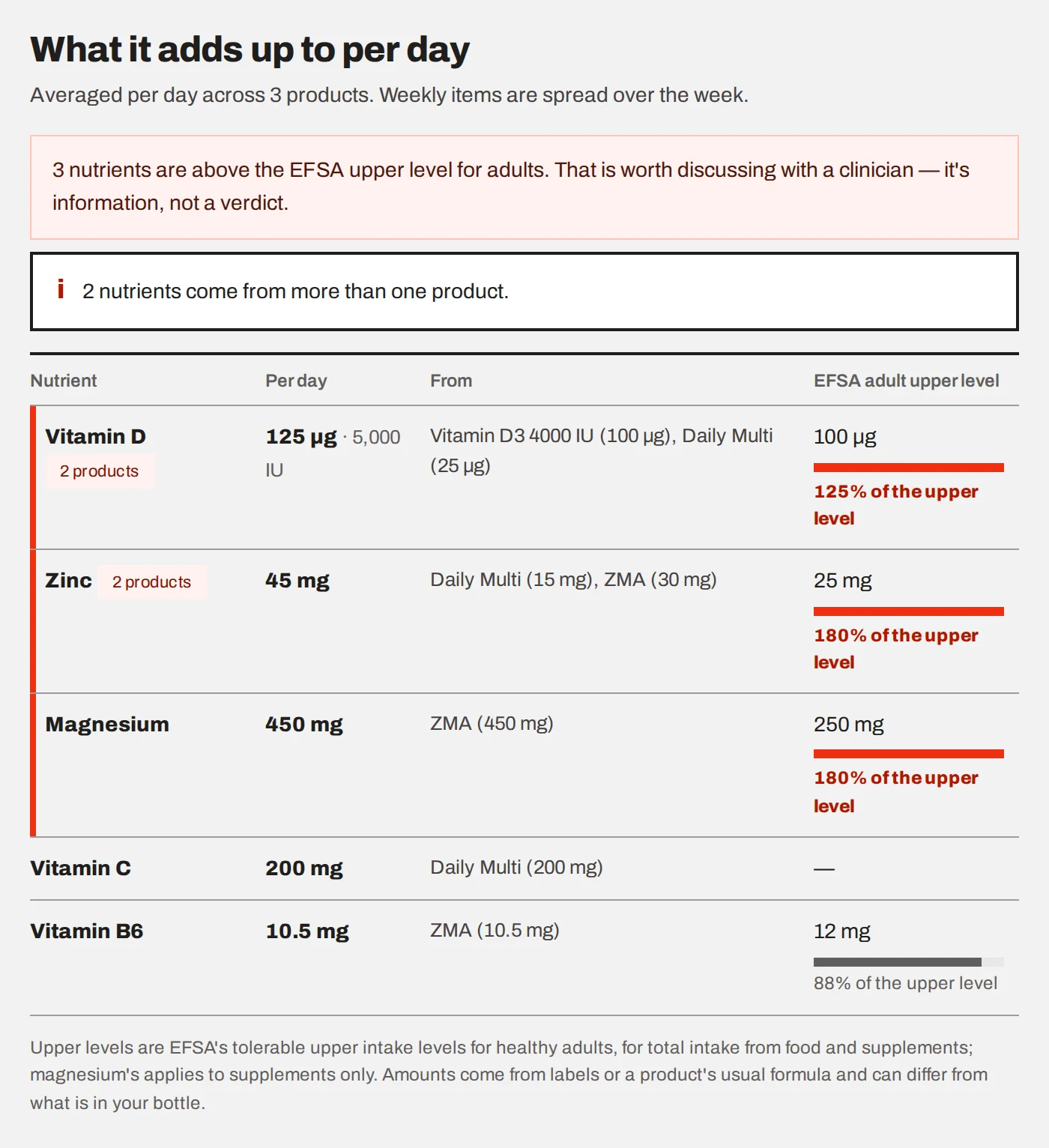
The table shows each nutrient’s daily total across all your products, next to the tolerable upper intake level that EFSA gives for healthy adults. A total above that level is worth raising with a clinician. It is information, not a verdict, and the page does not tell you what to change.
You can pause or stop a product without losing its history, read a label again with Recheck, and download the whole list as a PDF to bring to an appointment.
From Telegram
If you have turned on health conversations in Telegram (Account → Notifications), send the bot a photo. It asks whether the photo shows medicines or supplements, reads it, and lists what it found. Tap a number to leave one out, then save. Send /scan to choose first and photograph second.
What happens to the photos
Photos are shrunk on your device and stripped of location data before they are sent. On our server, any name, address, phone or ID number found on them is blacked out, and only that copy goes to the AI provider, just to be read.
Photos of medicines are not kept. For supplements, the blacked-out copy is kept, encrypted, next to the product, so you can look at it and recheck it later. Removing the product deletes it.