Switching them on
Open the protocol on Protocols and scroll to Reminders. The same switch is in the builder’s schedule step.
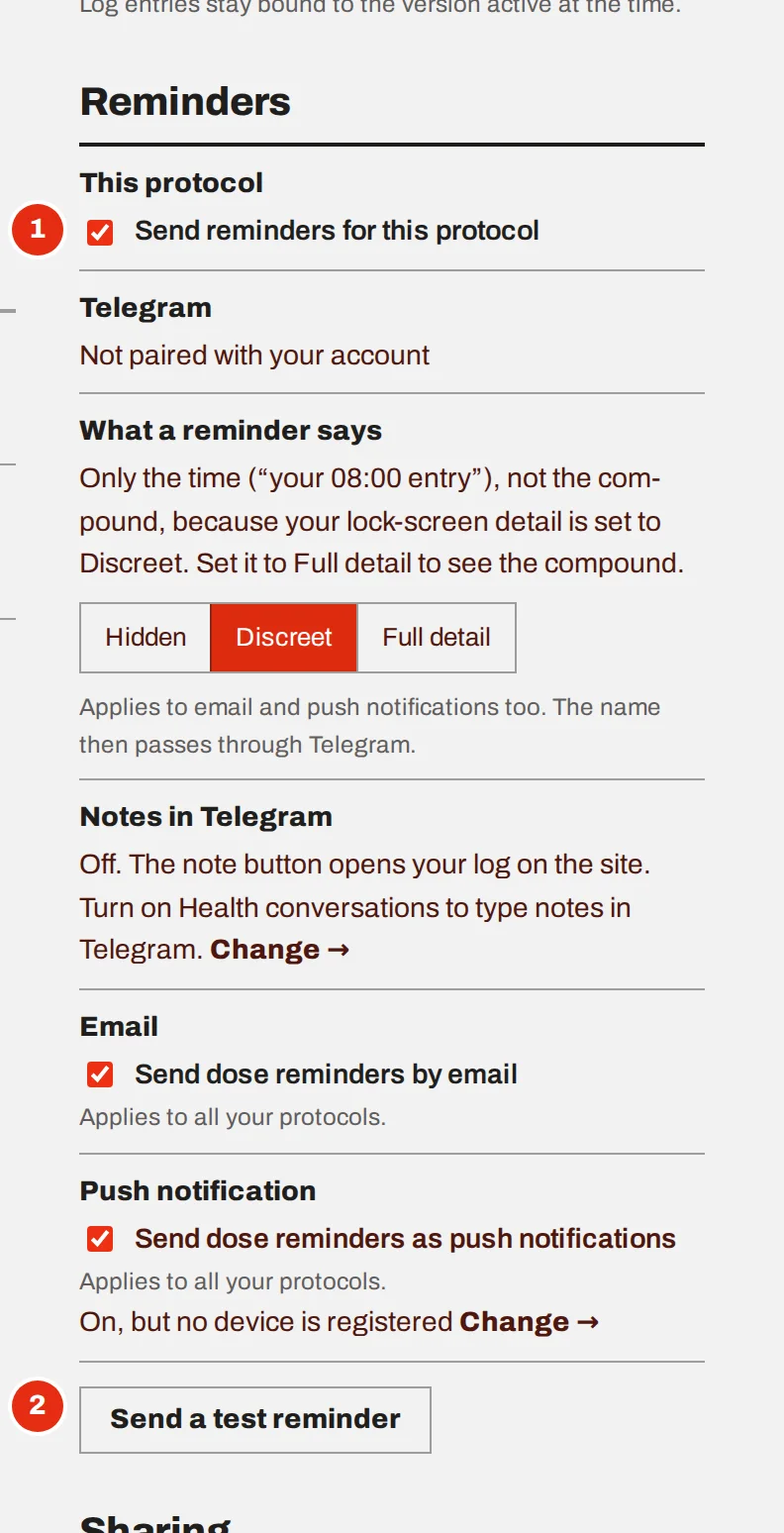
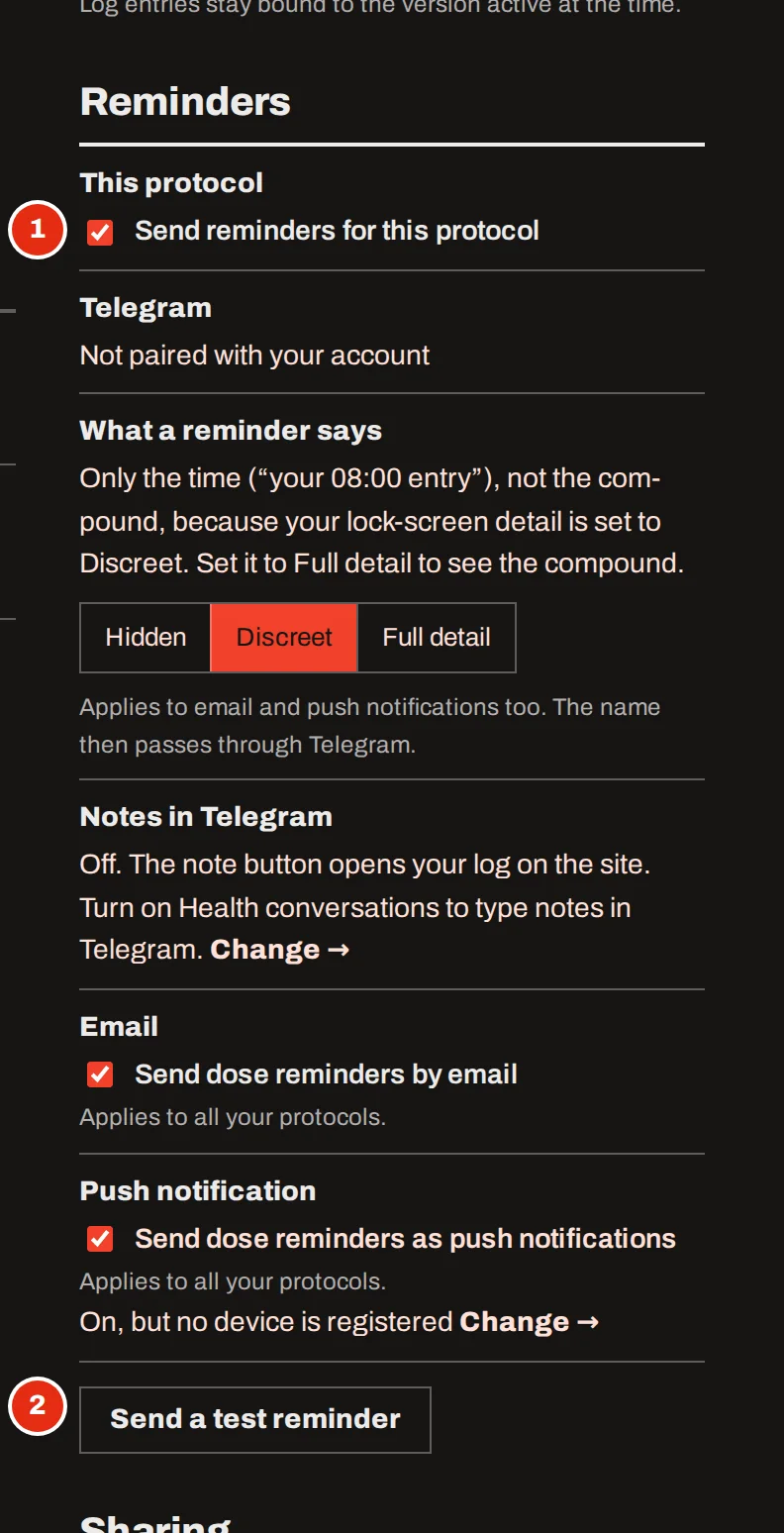
Tick “Send reminders for this protocol”
This is the switch for this one protocol. The rows under it show each channel and what a reminder will say, and you can change them here without leaving the page.
Send a test reminder
The test goes out by the channels that are on, so you see exactly what will arrive. Nothing is logged.
Where they arrive
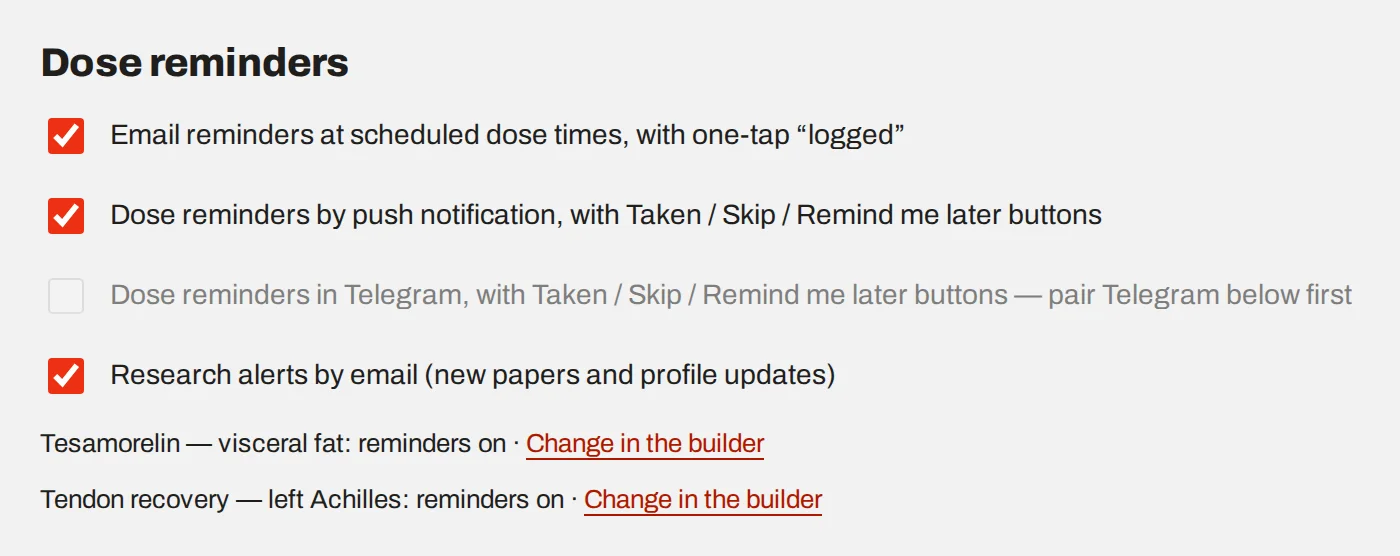
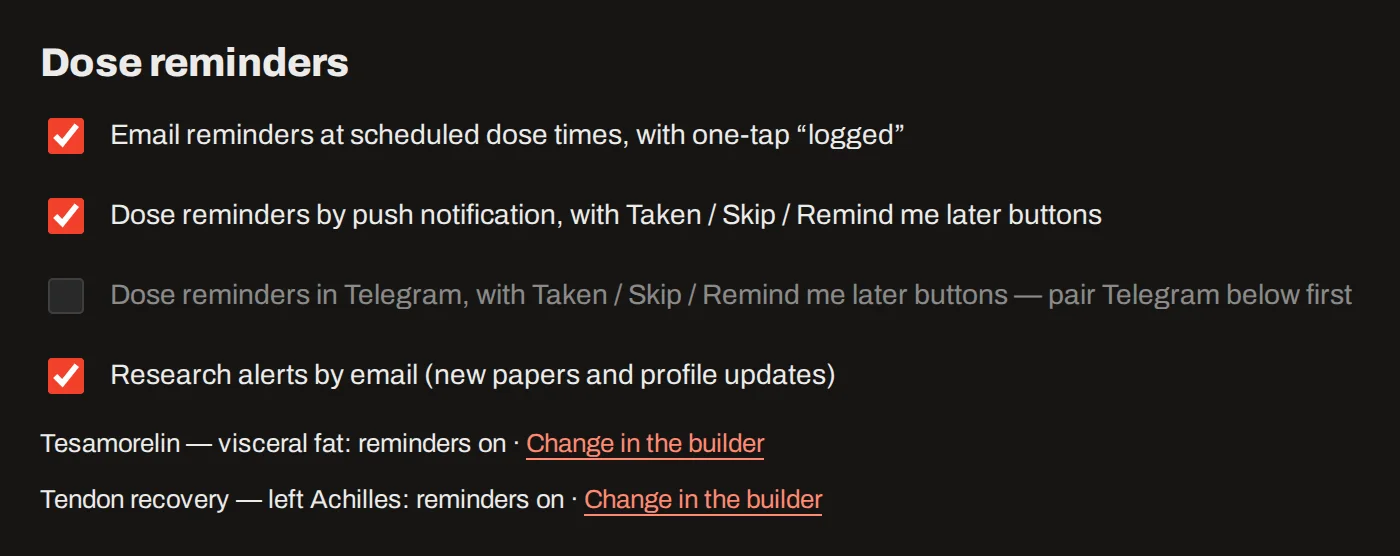
Account → Notifications has one switch per channel. You can use more than one.
Email comes with a one-tap “logged” link. Push works per device: choose Turn on for this device on each phone or computer you want it on. On an iPhone or iPad, add the site to your Home Screen first and open it from there. Telegram sends each reminder to your own chat with the bot, with buttons that log the dose without signing in.
How much a reminder says
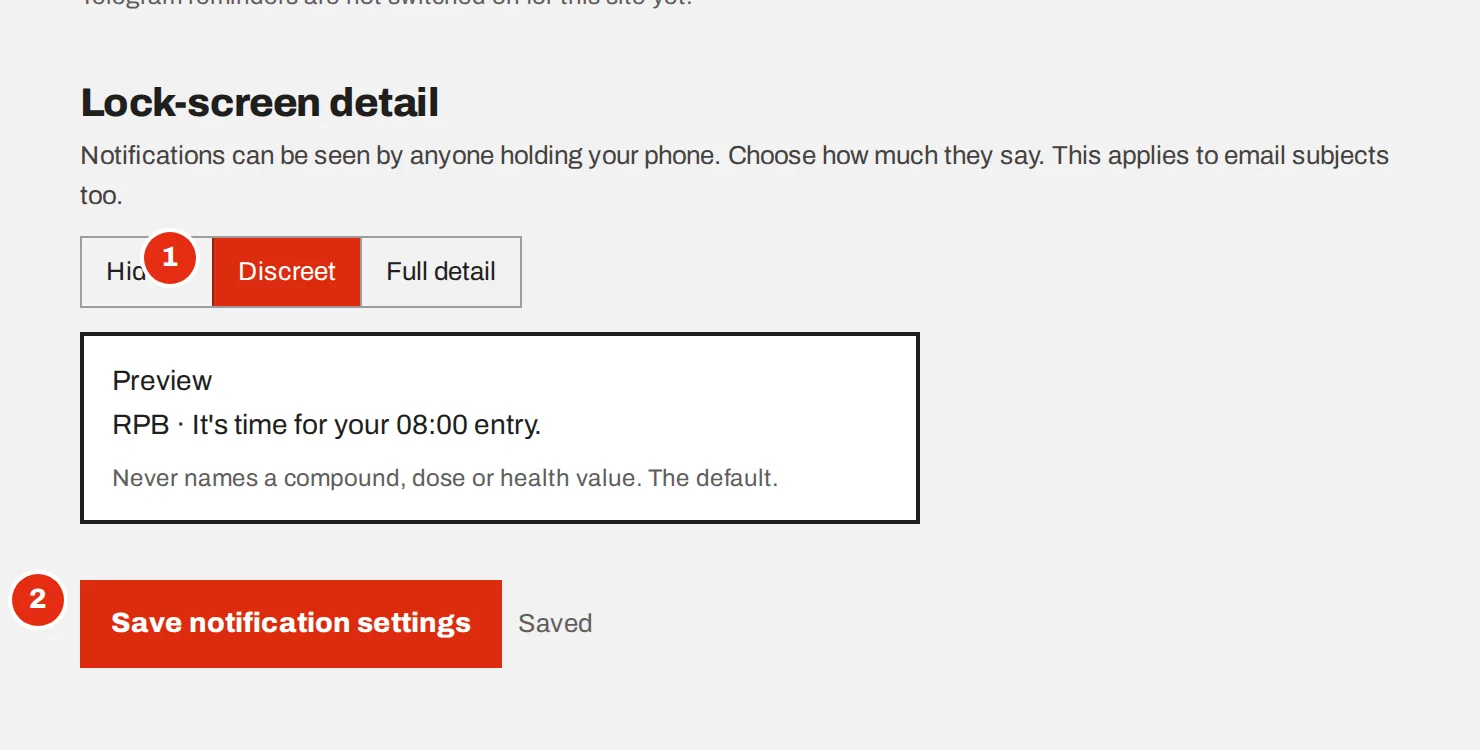
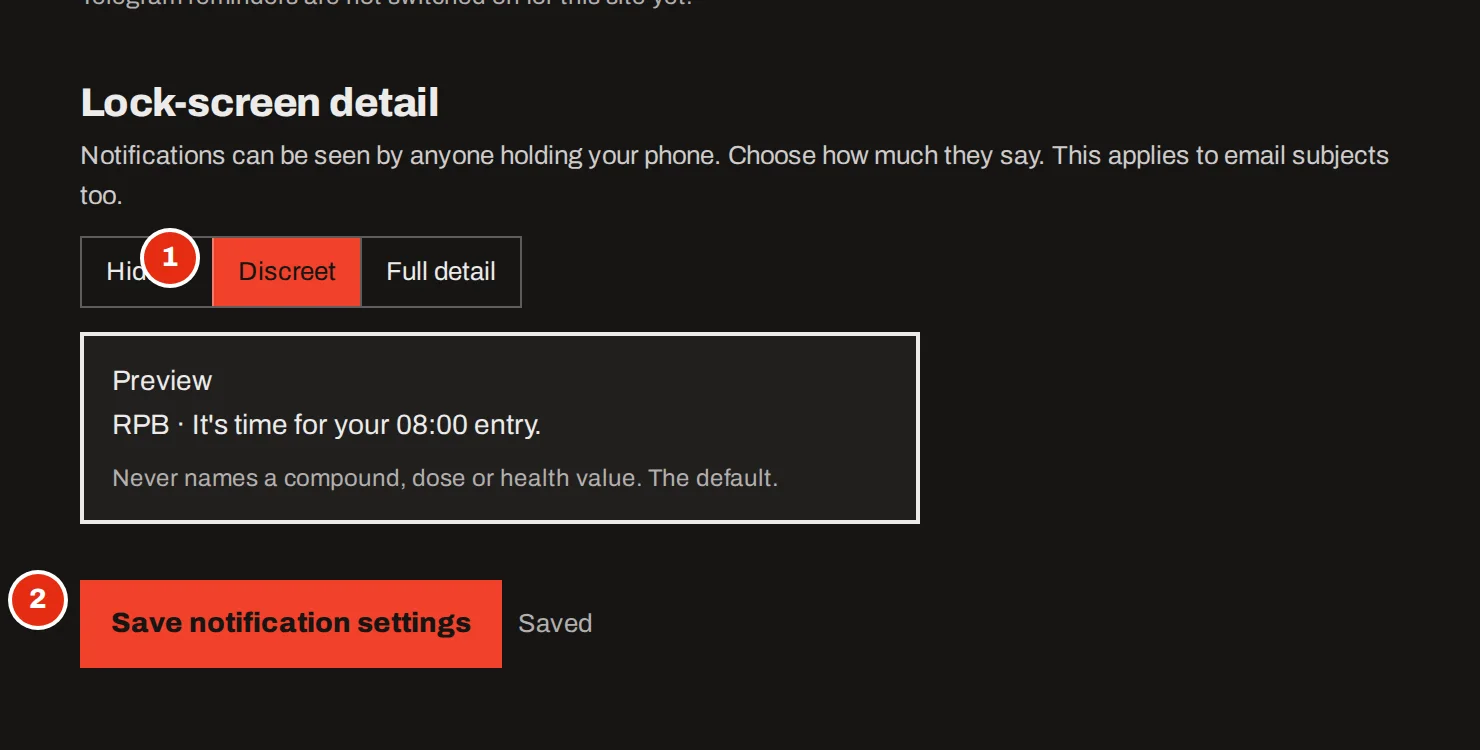
A notification can be read by anyone holding your phone. Discreet is the default: it gives the time and never names a compound, a dose or a health value. Hidden shows nothing but the name of the app. Full detail names the compound and dose. The setting covers email subjects too, and with Telegram the name then passes through Telegram.
Answering a reminder
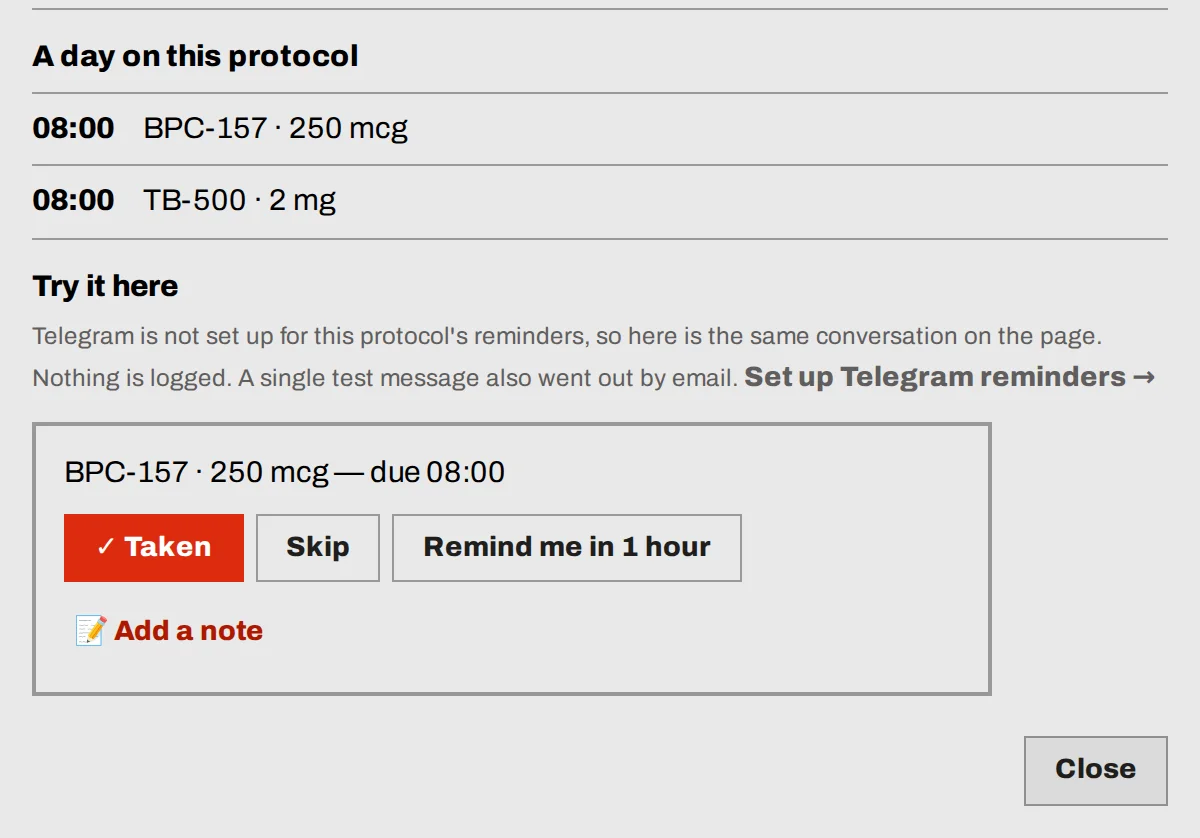
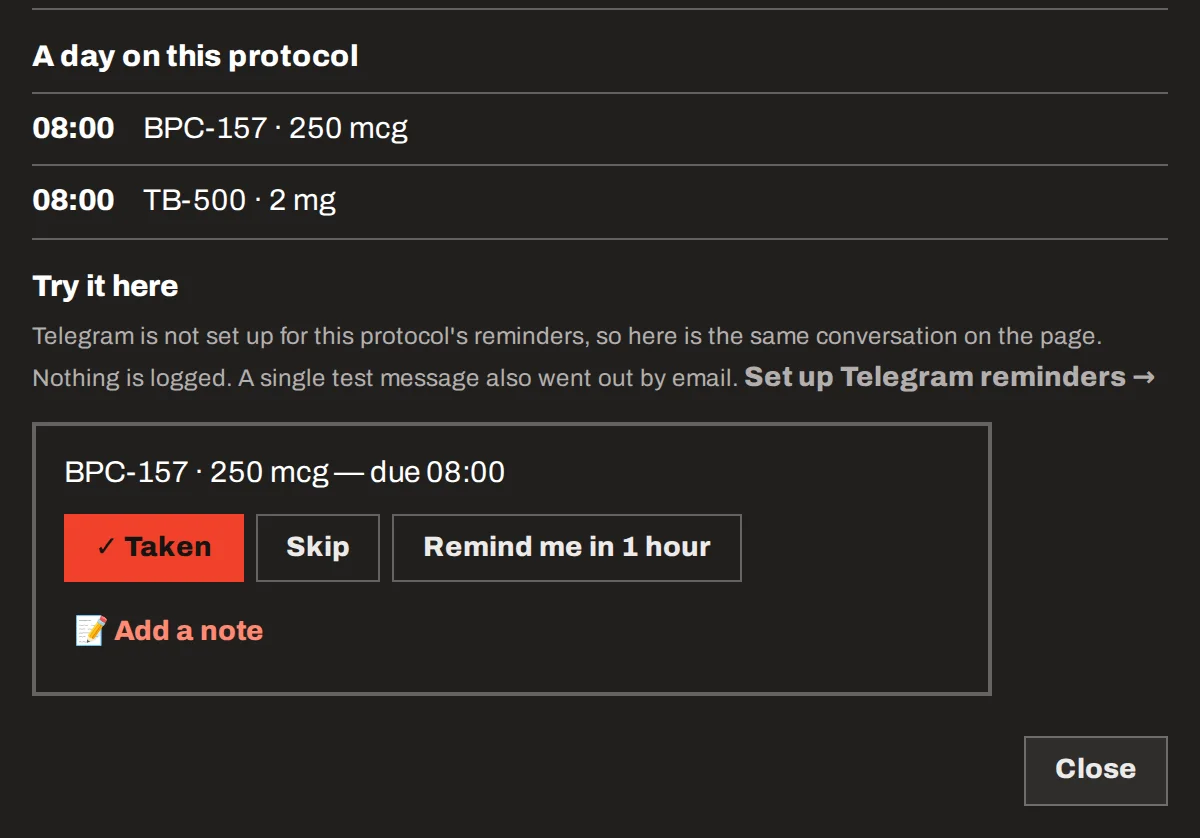
A reminder asks about one dose at a time: Taken, Skip, or Remind me in 1 hour. After you answer, it asks about the compounds you take once a day that are still to come, so you can log those in the same go or be asked again at their time.
Under each message you can add a note. It goes into that day’s log.
Quiet hours
Set a start and an end in Account → Notifications. During quiet hours only security alerts get through.
Pairing Telegram
In Account → Notifications, choose Pair Telegram. Telegram opens; press Start there. The link works once and expires in 15 minutes. We only ever see the chat the message comes from, never your phone number or your contacts. Send /stop in the chat at any time to unlink.